Left4dead2malaysia
TUTORIAL ON PLAYING LEFT 4 DEAD 2 NON STEAM

L4D2 Non-Steam Updates & Patches | UP: 2.0.3.1 | SP:T2.4
[1] REQUIREMENT
==================
1.1 Garena Client
1.2 Left 4 Dead 2(PC) Copy
1.3 Steam or Non-Steam
[2] GETTING STARTED
==================
2.1 Updating Your Left 4 Dead 2
>>Left 4 Dead 2 Update Patches
>>Left 4 Dead 2 Master Update
>>Left 4 Dead 2 Incremental Update
>>Left 4 Dead 2 Standalone Patch
>>Left 4 Dead 2 Verification Tools
>>Left 4 Dead 2 SDK
[3] GARENA CLIENT
==================
3.1 Installing and Registering in Garena
3.2 Setting up Left 4 Dead 2 in Garena
[4] L4D2 INGAME
==================
4.1 Configuring Game Settings
4.2 Hosting a Game & other Information
[5] FAQS
==================
5.1. Changing Ingame Name
5.2. How To Use Chinese \ASCII\Unicode Symbols In Player Name
5.3. Sound Crack \ Fizzes
5.4. Frequently Use CVAR
REQUIREMENT
1.1 Left 4 Dead 2 PC Game A clean and unmodified game is strongly recommended so it would cause a lot of ruckus for you and everyone.System Requirements
Minimum
Supported OS: Microsoft Windows XP / Vista / Vista64 / Win7 / Win764
Processor: Pentium 4 3.0GHz
Memory: 1 GB
Graphics: 128 MB, Shader model 2.0, ATI 9600, NVIDIA 6600 or better
Hard Drive: At least 7.5 GB of free space Sound Card: DirectX 9.0c compatible sound card
Recommended
Supported OS: Microsoft Windows XP / Vista / Vista64 / Win7 / Win764
Processor: Intel core 2 duo 2.4GHz Memory: 1 GB
Graphics: Shader model 3.0, NVIDIA 7600, ATI X1600 or better
1.2 Microsoft Visual C++ 2008 & .Net Framework 3.5Download: Visual C++ 2008 x32-Bit | Visual C++ 2008 x64-Bit1.3 Garena Client
Download: .Net Framework 3.5
Garena Software connects gamers worldwide by transforming the internet into a massive virtual cybercafé. Connecting with friends for a game is a lot more easier.
1.4 Non-Steam or Steam1.4.1 Non-Steam
You can Play the game as Non-Steam in Garena with the Updates and Patches released here.
1.4.2 Steam
Play in Garena without any modifications. You can Use the Updates from here if steam Fails to update your Client.
GETTING STARTED
KNOWING LEFT 4 DEAD 2
2.1.1 Definition of Left 4 Dead 2Updating Left 4 Dead 2
2.2.1 Why do you have to Update?Updating your game allow a game to be more balance and stable. Plus you can get new contents! Why are you going to use my Update patches? That's because it's clean and legit Files. Beside that, you don't have to waste your heavy Files instead you only need to download quarter of the size. That's Because, all the Updates are compressed with Latest Compressor and is checked for errors. Why don't use my patch? May because my patch doesn't perform a heavy file check to find what you missing like Steam. It's your choice!
2.2.2 Latest Game Version(Steam): v2.0.3.1
Change-log: [Updated on 31st July 2010]All the Below Resources were updated on 31st July 2010.
- Encore mutation: Versus Survival
- Added a setup timer to Versus Survival
- Fixed bug in Versus-Survival where a team could get 5 survivors
- Fixed an exploit that dropped players from dedicated servers
- Versus - Added Charger Bonus Points for Insta-Kill and Insta-Incap, 300 and 200 Points
- Added Tank STASIS Mode. (The Invisible Tank)
- ....................................[More]
2.2.3 Update(s)
To Successfully install Updates and Play the Game,
1. Download and Install Master Update/ Incremental Update to your convenience.
2. And then Download and Install the Latest Standalone.
3. Start the game over Garena or Desktop.
DOWNLOADS | UPDATES
DOWNLOAD | MASTERUPDATES
This is a Fully-Loaded Update which will Upgrade from any version to the Latest Version.
?»»
Left 4 Dead 2 Master Update Version 2.0.2.7 ~542MB [Updated on 18th July 2010]
Description:
This Update will upgrade your game from any lower version to the latest 2.0.2.7. Recommended for Beginners!
This Update also Includes " Addon Support Tools " & " The Passing Addon ".
DOWNLOAD LINK #|MULTIUPLOAD|# #|DEPOSITFILES|#
Description: This Patch will update your game from 2.0.2.7 to 2.0.3.3.
DOWNLOAD LINK #|MEDIAFIRE|# #|MULTIUPLOAD|#
Download And install the Latest Standalone Patch to Play the game online/offline. Click Here to Goto Standalone Patch
DOWNLOADS | INCREMENTAL UPDATE
This is a Single-Step Loaded Update which is only valid for Pre-Users of My Archived Updates.Not Advisable for New Users
 ?-» Left 4 Dead 2 Incremental(Mini) Update Version 2.0.3.2-2.0.3.3 ~9MB [Updated on 14th August 2010]
Description: This Patch will update your game from 2.0.3.2 to 2.0.3.3.
DOWNLOAD LINK #|MEDIAFIRE|# #|MULTIUPLOAD|#
?»» Left 4 Dead 2 Incremental(Mini) Update Version 2.0.3.1-2.0.3.2 ~8MB [Updated on 8tht August 2010]
Description: This Patch will update your game from 2.0.3.1 to 2.0.3.2.
DOWNLOAD LINK #|MEDIAFIRE|# #|MULTIUPLOAD|#
Description: This Patch will update your game from 2.0.2.9 to 2.0.3.1.
DOWNLOAD LINK #|MEDIAFIRE|# #|MULTIUPLOAD|#
OLDER INCREMENTAL UPDATE
Left 4 Dead 2 Incremental(Mini) Update Version 2.0.2.7-2.0.2.9 ~5MB [Updated on 4th June 2010]Description: This Patch will update your game from 2.0.2.7 to 2.0.2.9. Applies only for Archived Users.
Downloads: Link(MediaFire) | Mirror(MultiUpload)
Left 4 Dead 2 Incremental(Mini) Update Version 2.0.2.6-2.0.2.7 ~5MB [Updated on 4th June 2010]
Description: This Patch will update your game from 2.0.2.6 to 2.0.2.7. Applies only for Archived Users.
Downloads: Link(MediaFire) | Mirror(MultiUpload)
Left 4 Dead 2 Incremental(Mini) Update Version 2.0.2.4-2.0.2.6 ~5MB [Updated on 4th June 2010]
Description: This Patch will update your game from 2.0.2.4 to 2.0.2.6. Applies only for Archived Users.
Downloads: Link(MediaFire) | Mirror(MultiUpload)
Left 4 Dead 2 Incremental(Mini) Update Version 2.0.2.3-2.0.2.4 ~5MB [Updated on 4th June 2010]
Description: This Patch will update your game from 2.0.2.3 to 2.0.2.4. Applies only for Archived Users.
Downloads: Link(MediaFire) | Mirror(MultiUpload)
Left 4 Dead 2 Incremental(Mini) Update Version 2.0.2.0-2.0.2.3 ~5MB [Updated on 4th June 2010]
Description: This Patch will update your game from 2.0.2.0 to 2.0.2.3. Applies only for Archived Users.
Downloads: Link(MediaFire) | Mirror(MultiUpload)
Left 4 Dead 2 Incremental(Mini) Update Version 2.0.1.6-2.0.2.7 ~5MB [Updated on 4th June 2010]
Description: This Patch will update your game from 2.0.1.6 to 2.0.2.7. Applies only for Archived Users.
Downloads: Link(MediaFire) | Mirror(MultiUpload)
Left 4 Dead 2 Incremental(Mini) Update Version 2.0.1.9-2.0.2.0 ~5MB [Updated on 4th June 2010]
Description: This Patch will update your game from 2.0.1.9 to 2.0.2.0. Applies only for Archived Users.
Downloads: Link(MediaFire) | Mirror(MultiUpload)
Left 4 Dead 2 Incremental(Mini) Update Version 2.0.1.8-2.0.1.9 ~6MB [Updated on 25th May 2010]
Description: This Patch will update your game from 2.0.1.8 to 2.0.1.9. Applies only for Archived Users.
Downloads: Link(MediaFire) | Mirror(MultiUpload)
Left 4 Dead 2 Incremental(Mini) Update Version 2.0.1.7-2.0.1.8 ~7MB [Updated on 15th May 2010]
Description: This Patch will update your game from 2.0.1.7 to 2.0.1.8. Applies only for Archived Users.
Downloads: Link(MediaFire) | Mirror(MultiUpload)
» Left 4 Dead 2 Incremental(Mini) Update Version 2.0.1.6-2.0.1.7 ~7MB [Updated on 15th May 2010]
Description: This Patch will update your game from 2.0.1.6 to 2.0.1.7. Applies only for Archived Users.
Downloads: Link(MediaFire) | Mirror(MultiUpload)
» Left 4 Dead 2 Incremental(Mini) Update Version 2.0.1.4-2.0.1.6 ~9MB [Updated on 1st May 2010]
Description: This Patch will update your game from 2.0.1.4 to 2.0.1.6. Applies only for Archived Users.
Downloads: Link(MediaFire) | Mirror(MultiUpload)
» Left 4 Dead 2 Incremental(Mini) Update Version 2.0.1.3-2.0.1.4 ~80MB [Updated on 22nd Apriil 2010]
Description: This Patch will update your game from 2.0.1.3 to 2.0.1.4. Applies only for Archived Users.
Downloads: Link(MediaFire) | Mirror(MultiUpload)
» Left 4 Dead 2 Incremental(Mini) Update Version 2.0.1.1-2.0.1.4 ~685MB [Updated on 22nd Apriil 2010]
Description: This Patch will update your game from 2.0.1.1 to 2.0.1.4. Includes " The Passing DLC Addon ". Applies only for Archived Users.
Downloads: Link(MediaFire) | Mirror(MultiUpload)
» Left 4 Dead 2 Incremental(Mini) Update Version 2.0.1.0-2.0.1.1 ~6MB [Updated on 25th February 2010]
Description: This Patch will update your game from 2.0.1.0 to 2.0.1.1. Applies only for Archived Users.
Downloads: Link(MediaFire) | Mirror(MultiUpload)
» Left 4 Dead 2 Incremental(Mini) Update Version 2.0.0.9-2.0.1.0 ~9MB [Updated on 21st February 2010]
Description: This Patch will update your game from 2.0.0.9 to 2.0.1.0. Applies only for Archived Users.
Downloads: Link(MediaFire) | Mirror(MultiUpload)
» Left 4 Dead 2 Incremental(Mini) Update Version 2.0.0.8-2.0.0.9 ~9MB [Updated on 8th February 2010]
Description: This Patch will update your game from 2.0.0.8 to 2.0.0.9. Applies only for Archived Users.
Downloads: Link(MediaFire) | Mirror(MultiUpload)
Use the Given Below Standalone Patch to Play the game Online/Single Player.
STANDALONE PATCH
This is a Patch which will convert any Steam Version of the Left 4 Dead 2(PC) to Non-Steam Version and enabling you to play on Garena Efficiently. Mostly Recommended. This Patch comes with Multi-functional Features.2
==================================================================================
.3.1 Standalone Patch - TX1.6 ~ 8MB [Updated on 14th August 2010]
File Description: Left 4 Dead 2 Steam Emulator.


Change Log:
- Added Few More UI Enhancements [New]
- Added c0der/GaNi's Consistency Hex Pattern Bypasser.
- Added Mutation Mod [New]
- Added dani1341's custom 22 Mutations
- Standalone Patch has new Look

- Achievements Save now![rev-Crew Loader]
- Added rev-Crew's and Stryder's Emulator.
- Enhanced the feature to Change name and Language.
- Integrated Garena BootStrap Parameters
- Added Setti Non Steam Servers.
- Personal Preferences are saved upon upgrading the Standalone Patch.
- Crash at Exit. [Stryder Loader]
- Achievements Will Not Save[Stryder Loader
GAME FILE INTEGRITY CHECK
2.4.1 Getting Errors aka Trouble Shooting ??What is this ?
File Integrity Check is simply performing a MD5 hash scan on your Left 4 Dead 2
to check whether any files may be Corrupted, Modified or Missing.
This is usually used for detecting files that may be causing troubles to the game.
DOWNLOADS
» File Checker For v2.0.2.7 R1 Updated Game Files -[Updated on 18th July 2010]File Description: Checks Left 4 Dead 2 Directory for missing files, Corruption
and Compares Files with MD5 Hash Checksum.
DOWNLOAD LINK #|MEDIAFIRE|# #|MULTIUPLOAD|#
LEFT 4 DEAD 2 AUTHORING TOOLS
[Optional Tool] For Advanced Users and Time Passers» Left 4 Dead Authoring Tools(SDK) 2.2 v10 ~ 22MB[Updated on 14th July 2010]
Description: A Valve Game Files Editing Tool and useful
for making Map. Go! Go! Make Maps and Models.
Use SDK Launcher and Hammer in
DOWNLOAD LINK #|MEDIAFIRE|# #|MULTIUPLOAD|#
Note: Previous Version was: 2.1v8
Regarding Authoring Tools(SDK) Manual: L4D Authoring Tools Wiki
And
Tutorial on Making Maps with SDK Here: [Tutorial] How to Use Left 4 Dead 2 Authoring Tools(SDK)
Classified: Knowing GaNi
GARENA CLIENT
3.1.1 Installing Garena
1. Go to http://www.garena.com/ then click Download Garena.
2. Click any mirror under your preferred language to download.
3. Start Garena_setup.exe.
4. Follow the instruction and finish the installation.
3.1.2 Registering Garena Account
1. Start Garena and click on Register when Garena login window show up.
2. Fill in all the form accordingly then click Submit.
3.2 Setting Garena for Left 4 Dead 2
1. Start and Login your Garena.
2. Click Game -> Left 4 Dead 2 on the left sidebar. Select your Country Region* and double click room to join.
3. Click Settings.
4. Click the Browse button.
5. Navigate to your Left 4 Dead 2 folder (By default: C:\Program Files\Left 4 Dead 2) and select left4dead.exe then click Open.
6. Nothing Required at Game Bootstrap Parameters box.
7. Click Update!
8. You can now click Start Gamebutton to play Left 4 Dead.
*Preferred Country Region Rooms because you will get the best Server Latency time plus Your game's performance and Stability will be optimized.
LEFT 4 DEAD 2 IN-GAME
4.1 Options4.1.1. Video1. Aspect Ratio
Adjust the width and height of your display.
2. Resolution
Adjust the level of detail of your display.
3. Display Mode
Fullscreen display optimizes performance. Windowed displays allow for multitasking.
4. Film Grain Amount
Increase or reduce film grain effect on your display.
5. Use Recommended Settings (Recommended For newbie)
Revert all video settings to what is recommended for your hardware.
6. Advanced Settings (Show settings below. For Experience users)
7. Anti-Aliasing Mode (Tip: Extreme Graphic card usage)
Smooth rough edges. Requires high graphics card memory.
8. Filtering Mode
Adjust the sharpness of game textures to optimize graphics card performance.
9. Wait For Vertical Sync (Tip: High Overall Performance usage)
Balance performance against visual artifacts.
10. Multicore Rendering (Tip: Unstable setting)
Enable to optimise performance on multicore processors. Disabling may solve problems with uneven framerate.
11. Shader Detail (Tip: Average Graphic card usage)
Adjust graphic levels based on graphics card performance.
12. Effect Detail (Tip: Low-to-Extreme CPU usage. Depend on situation in-game)
Adjust effect levels based on CPU performance.
13. Model/Texture Detail (Tip: Average-to-High Memory usage)
Adjust the detail of models and textures in the game.
14. Paged Pool Memory Available (Tip: Extreme Memory usage)
Configure your driver to allocate less or more memory.4.1.2. Brightness
Adjust the brightness of the screen.4.1.3. Audio1. Game Volume
Adjust the volume of the game.
2. Music Volume
Adjust the music volume.
3. Speaker Configuration
Configure speaker layout and channels.
4. Sound Quality (Tip: High Memory usage)
Adjust sound quality.
5. Captioning
Configure your closed captioning preference.
6. Enable Voice In This Game
Allow communication between you and other players, also unlock the settings for Voice.4.1.4. Keyboard/Mouse1. Edit Keys/Buttons
Change your preferred keyboard, mouse and gamepad button layout.
2. Reverse Mouse
Invert the directions of your mouse.
3. Mouse Filter
Smooth out movement when using mouse to look.
4. Mouse Sensitivity
Increase or decrease the responsiveness of your mouse.
5. Allow Developer Console (Recommend: Enabled)
Allow access to the developer console to view debugging information and customize settings.
6. Gamepad
Enable handheld game controller and unlock the settings for gamepad.4.1.5. Multiplayer1. Automatically Discover LAN Games
Allow discover friends and servers on your LAN. Should be disabled if your ISP does not support or does not allow broadcast packets.
2. Custom Server Content
Filter the files that a game server with custom content can download to your computer.
3. Spraypaint Image
Image to be spray when press Spray(Default key: T) in game.
4. Color Blind Mode
Enable to optimize the health bar and halo glow color schemes for some types of color blindness.
5. Game Instructor
Enable or disable helpful real-time hints during gameplay.
6. Spectating Free Look
Allow free look when dead or spectating.
4.2 Joining a game
4.2.1. General Method (Only for Steam Users)1. Click Play Campaign then select Play With Friends. (Campaign is Co-op. Survival and Versus is self-explanatory. Choices can vary.)
2. Click on your desired game room and click Join Game.
Have Steam and want to join Garena Servers ? Then do these :
1. Turn on Steam, then login to garena and join any Left 4 Dead 2 rooms.
1. When in Game, you can join via Steam Group of Shared Servers(Lobby) or goto ServerBrowser and click then LAN Tab. Join any Garena Servers.
4.2.2. Console Method (Most stable but complicated)1. Find and know your friend's or random person's Garena IP. (Garena IP format: 192.168.29.xxx)
2. Go back to your Left 4 Dead 2.
3. Submit connect [garena ip] in console to join game.
4.2.3. Server Browser Method (Most recommended)1. On Left 4 Dead 2 menu, Hit " ~ " and type " openserverbrowser " or in Left 4 Dead 2 Menu Click Server Broswer(if there).
2. Con the "LAN" tab to view game room.
3. Double click on your desired game server to join game. (Do not join high latency game!)
4.3 Hosting a game
Hosting game is recommended for experienced user. Don't try to host if you can't even join or having bad connection.
4.3.1. General Method (Only for Steam user)1. On Left 4 Dead 2 menu, click Play Campaign and select Play With Friends.
2. Click Create Lobby and click on own desired mode.
3. Customize your lobby options then click Create Lobby.
4. When ready, you may start the game.
4.3.2. Console Method (Most recommended)1. Submit map [mapname] in the console to create game.
2. Submit net_status in console and find your Garena IP in the information shown. (Garena IP format: 192.168.29.xxx)
3. Tell your friends your Garena IP and ask them to join.
4.3.3 Dedicated Garena LAN Server Method (Must have Left 4 Dead 2 dedicated server installed)1. Go to Garena's Settings and change your Left 4 Dead 2's Executable Settings to srcds.exe.
2. Click Start Game on Garena.
3. Customize your preferred settings on Start Dedicated Server window except Network must change to LAN and leave UDP Port untouched.
4. Once you are happy with the settings, click Start Server and wait for the server to start.
5. Once complete, you will see a window with statistic on it. You can use the console for changing server settings. Otherwise, you just leave it running.
FREQUENTLY ASKED QUESTIONS {FAQS}
5.1. Changing In-Game Name
5.1.1. Change name using Left 4 Dead 2 Control Center (L4D2 Control Center.exe)
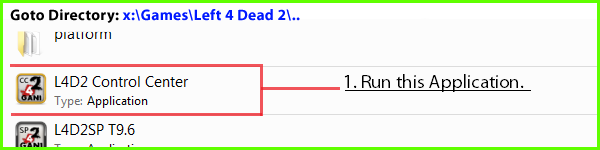
1. Go to your Left 4 Dead 2 folder with Standalone installed.
2. Open L4D2 Control Center.exe
3. Enter your name
4. Choose any other Option if Required.
5.1.2. Change name using console.(Temporary Solution)
1. Go into Left 4 Dead 2 and open up console.
2. Type name "YourName" and then click Submit, ie: Name "Super Torpedo"
5.1.3. If Solution above doesn't work.
Something is messing up. Go to your Left 4 Dead 2 then into left4dead2\cfg. Open config.cfg or autoexec.cfg with Wordpad then use Wordpad Search function(Ctrl+F) and search for Name. Remove that line or replace the it into name "YourName" just like in console.
5.2. How to use Chinese\ASCII\Unicode Symbols in Player Name ?
To have a Chinese\ASCII\Unicode Characters in your Playername, get
Notepad++ , and then Install it.
Now, Goto your Left 4 Dead 2 Directory, follow these images

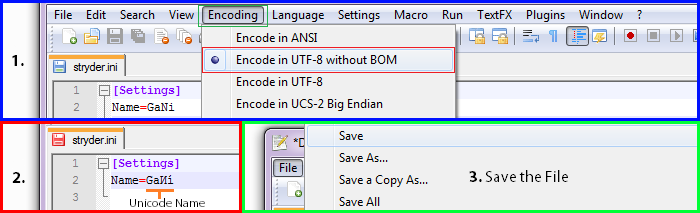
Now you will have your Custom name set.
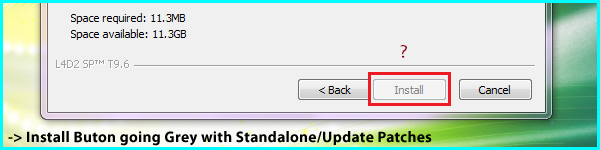
5.3. Did the INSTALL Button go grey while installing Standalone/Update Patches?
5.2.1
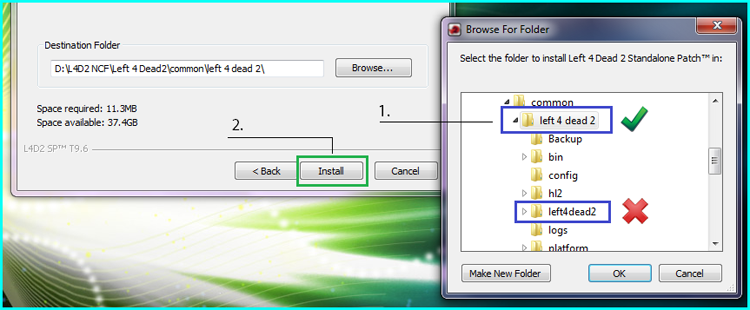
Reason: The Patch was designed to sense the correct installation path,
hence if you point a wrong path while installation,it wont let you continue the process.
This way you can avoid overwriting of files in wrong place and avoiding game file corruption.
Good Path Selection Depends on: 1. left4dead2.exe, main root directory of
5.4 Sound Cracks\Fizzes\ NO Sound ?
If you have any sound trouble, like Crackling sounds in between the game or
the audio doesn't syncs or similar to that. All you have to do is :
-> Open Console and type the following Command
snd_rebuildaudiocacheAnd then wait for few mins(10-15mins), Exit and Restart the game. OR
As for the v2.0.1.6 and higher updates are concerned, most of the Addons have a Conflict with the game,
especially L4D1 Maps/Characters, please remove them and Start the game.
| CVAR INFO
|
